Learn the buttons, browse your music, and find the settings you need. Screenshots use sample music and session data. Select an image to see it at full size.
Use the volume buttons to move, Play to choose, and Back to return. Hold Back to go Home.
Home
Hold Back → Home
Landscape view
Home starts with Music, Mixtapes, Recap, Clock, USB mode, and Settings, in that order. Now Playing appears above Music whenever a track is loaded, playing, or paused.
Press Play to open the highlighted item. Music includes the Audiobooks and Podcasts shelves when available.
Hold Play on an artist or album artist for Play all or Shuffle albums. Both keep each album’s tracks together. Open Quick Settings with Menu on Now Playing, then choose Up Next. Settings → Display & text → Home screen can also show the shelves and Up Next on Home.
The battery icon shows remaining charge. It turns red as charge runs low; a bolt inside it shows USB power. Choose extra readouts in Settings → Display & text → Status bar.
Press Power to turn the screen off or on; hold it for two seconds to switch off.
For pocket listening, hold Play and Power together for about a second to lock or unlock the buttons.
A track is loaded
Home · while playing or paused
Open Now Playing to return to the loaded track. The row disappears when nothing is loaded.
Portrait layout
Settings → Display & text → Orientation offers Portrait and Portrait, flipped. The Sunset Disc and status indicators share the top bar. Home shows its menu above the cover, and Now Playing puts the cover above the track details.
Portrait Home
One status row above the menu and album artwork.
Portrait Now Playing
More room for the cover, with time and controls below.
In Portrait, the volume buttons swap list directions; Portrait, flipped keeps their usual roles. With the screen off, Volume+ always raises the volume.
Find music
Browse your library visually or search for a song. Start from an artist, album, folder, or playlist to keep that group together.
Cover Flow
Home → Music → Cover Flow
Landscape view
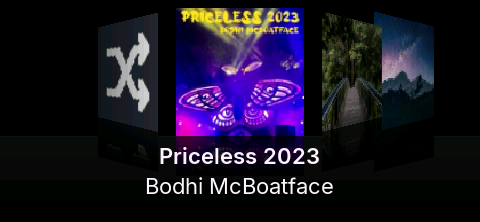
Flip through album covers. Albums without artwork get a colored cover with initials, using your current theme. The Random album tile picks an album for you.
Use the volume buttons to move between albums. Hold to accelerate, then jump by artist initial.
Hold to scroll faster, then jump between artist initials.
Press Play to open an album; hold Play to favorite it.
Search
Home → Music → Search
Landscape view
Find songs by title, artist, album, album artist, genre, or file path.
Volume chooses a character; Play adds it and Menu erases.
Hold Play to run the search.
In long name-sorted lists, hold a volume button to accelerate and jump by letter. In the results, Menu opens sorting and filters. Hold Play on a song for Track info, My tags, and queue actions.
One library, two drives
Music → Folders
Internal music and microSD in one library · select image to enlarge
With a readable card inserted, Albums, Artists, Songs, and shuffle include both drives. Folders puts Internal storage first. If the same file path exists on both, only the card’s copy appears.
Without the card, the player returns to its internal library. The card’s library and the internal-only library keep separate queues, resume positions, bookmarks, and listening history. Settings stay the same.
Folders lists folders before files. Numbered tracks follow disc and track order; if any file has no track number, that folder’s files use filename order.
Favorite Tracks combines favorites from both drives, with the card’s songs first. Each song is saved to the Favorite Tracks.m3u on the drive that holds it.
An artist’s albums
Music → Artists or Album artists → choose an artist
Browse the covers in year order. The selected album shows its title and year. Volume moves, Play opens it, and Back returns to the artist list. One-album artists open their album directly.
Hold Play for Play all or Shuffle albums. Both keep each album’s songs together.
Hide or delete a song
Music → hold Play on a song
Hide track removes a song from browsing and shuffle while leaving its file on the drive. Settings → Library → Hidden tracks appears when something is hidden; choose an entry to show it again.
Delete file removes the audio file after a confirmation with Cancel selected. It also removes the song from the current queue; saved mixtapes skip it when opened. A chapter or CUE track sharing a file cannot be deleted on its own.
Up to sixteen songs can be hidden. After twelve hide/delete changes between scans, the player asks for a rescan before more changes.
After counting tracks, Gnarlyr shows percentages for Sorting, Reading playlists when needed, Saving library, and Finishing. Once the tracks are ready, you can browse and play while covers wait for an idle moment.
Start listening while covers fill in.
The library opens as soon as its tracks are ready. Album artwork fills in while the player is idle and not playing, or after a minute paused. A key press, playback, or a USB connection pauses that work; it continues later, including after a restart.
Gnarlyr checks the album’s tracks for usable embedded artwork, then tries a matching cover, folder, front, or albumart JPEG or PNG. The player handles JPEG orientation and CMYK artwork. Until a cover is ready, the album shows its initials.
One album file, separate songs.
A CUE sheet is a small text file that marks where each song starts inside a single album recording. Put the .cue beside its matching FLAC, WAV, or MP3 file, then run Settings → Library → Rescan library.
In Music → Folders, open the CUE sheet to choose a song by title. Opening the audio file plays the whole album. Seeking, Up Next, and resume use each song’s own position. A sheet must refer to one audio file; invalid track numbers or times and starts that repeat or go backwards are ignored.
Smart Lists
Music → Smart Lists
Five ready-made lists help you choose what to play. Each holds up to 100 songs.
Recently Added
New songs from later library scans, newest first. The first visit establishes the starting library.
Recently Played
Your latest songs, with each song listed once.
Most Played
Songs you heard at least halfway, ranked by play count.
Never Played
Songs you have not played, with newer additions first.
Old Favorites
Favorite tracks and albums you have not played in your last 500 plays.
Play starts a list at the selected song. Hold Play for queue actions. Lists use your last 4,096 plays.
Playback and the queue
Now Playing controls the current track. Up Next shows its place in the play order.
Now Playing
Home → Now Playing
Landscape view
See the song, artist, album, audio format, and progress. The top bar shows playback and connection status.
Play pauses or resumes. Volume adjusts loudness; hold to keep changing it.
Hold Play, then press Volume+ or Volume− to skip once. Books and podcasts jump 30 seconds forward or 15 seconds back. A paused player stays paused.
Hold Menu, then tap a volume button to move 10 seconds. Hold it longer to preview a position while the music keeps playing. Release the volume button to jump there.
The preview scales with the recording’s length and speeds up after two seconds. Press Power to cancel. With the screen off, the 10-second taps work; held previews wait for the screen.
Tap Menu for Quick Settings; hold Menu for Lyrics. Settings → Buttons changes button shortcuts.
Up Next
Now Playing → Menu → Up Next
Landscape view
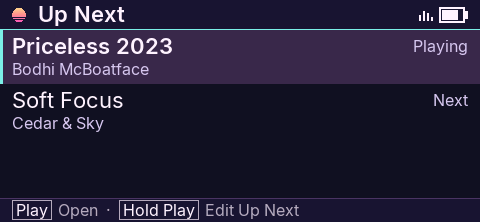
This is the order the player will follow, including songs you add while listening.
Hold Play on an entry for its actions.
Move a song earlier, later, or next, or remove it.
On the playing entry, Edit full queue turns an album or shuffled order into a mix you can rearrange.
Preview a seek
Hold Menu and a volume button to preview; release the volume button to jump.
Quick Settings
Now Playing → Menu
Change the controls you use most without leaving your music. Volume moves between rows. Play changes a two- or three-value row in place; rows marked › open a list where Play chooses a value and Back leaves it unchanged.
Shuffle / Repeat
Change song or album shuffling and repeat Off, One, or All.
Equalizer / Headphones
Choose an EQ preset or saved curve, or Off or one of four headphone profiles, from a list.
Speed
Choose a playback speed of 0.5×–3× from a list. Normal restores the original pace; recordings above 48 kHz keep normal speed.
Sleep timer
Choose a timer for this listening session.
Transitions / ReplayGain
Switch shuffle fades on or off in place, or choose Off, Track, Album, or Auto loudness adjustment from a list.
A–B repeat
Mark A at the current place, then B, to loop the section; a third press clears it. The row shows Off, A set, or A–B.
Now Playing
Choose Cover, Cassette, VU meters, or Spectrum from a list. Close the panel to see the new style; it is the same choice as Settings → Display & text → Now Playing style.
Lyrics / Up Next
Open the words or play order. Back returns to the same panel row.
Back closes the panel; Menu returns to Now Playing. Hold Back for Home. Use Settings to edit an EQ curve, a headphone profile, or the fade length.
More Quick Settings views
Scroll view · select image to enlarge
Choose a playback speed
Move to a value; Play applies it and Back cancels.
Change the Now Playing style
Choose a style, then close the panel to see it.
Now Playing styles
Choose Cover, Cassette, VU meters, or Spectrum. Sunset Drive gives VU and Spectrum a striped sunset and a bass-lit grid: the sun’s halves follow the stereo channels in VU, while sixteen frequency bars and their reflections fill Spectrum. The time, progress, and playback buttons keep their jobs in every style.
Choose your Now Playing style
Cover
Cassette
VU meters
Spectrum
Now Playing style
Settings → Display & text → Now Playing style
Cover / Cassette
Cover puts album art beside the track. Cassette shows a wireframe tape whose reels turn during playback and fill as the recording advances.
VU meters / Spectrum
VU meters show separate left/right levels. Spectrum shows sixteen frequency bars with peak markers. They settle when paused and stop updating with the screen off.
Choose a style and press Play to keep it. Colors follow the theme, in landscape or portrait and at every text size. Neon themes add a perspective wireframe around Cover and Cassette, with cyan artist text and clear seek and volume markers.
Speed, sleep, and repeat
Speed controls change how quickly a recording plays. A–B repeat keeps a chosen passage looping, and the sleep timer ends a session for you.
Playback speed
Settings → Playback → Playback speed · or Quick Settings
Choose 0.5×, 0.75×, Normal, 1.25×, 1.5×, 1.75×, 2×, 2.5×, or 3×. Play in Quick Settings steps to the next speed. The choice is saved.
Settings → Playback → Sleep timer · or Quick Settings
Choose 15–120 minutes, End of track, or End of chapter. On ordinary music, End of chapter ends at the current song; on a CUE album it ends at the current CUE track.
The last minute fades toward silence. End timers wait through a pause; timed timers keep counting. Off cancels the timer and restores normal level. Starting the player again leaves the timer off.
End-of-track and chapter sleep
A–B repeat
On Now Playing, tap Menu for Quick Settings and press Play on A–B repeat to mark A at the sound currently playing. Press it again later to mark B; B must come after A. The section repeats until you press it a third time to clear the loop. A button set to A-B repeat in Settings → Buttons does the same.
Marks use the playing position; moving through the song with Menu and a volume button doesn't move them. Changing tracks, restarting, or switching to USB clears them. End-of-track/chapter sleep clears a loop so the recording can finish.
Mixtapes, Moments, and listening history
Save a play order, build a two-sided cassette, or mark a favorite moment. Listening keeps your totals and most-played music together.
Mixtapes
Home → Mixtapes
Landscape view
Save queue captures Up Next as a named mix. New mixtape starts an empty one.
While naming, Volume chooses, Play adds, and Menu erases; hold Play to save.
Open a saved mix to play it, edit it in Up Next, rename it, or delete it.
Editing Up Next leaves the saved mix unchanged. In the mix’s actions, Replace queue saves your current play order over it.
Listening
Home → Recap
Landscape view
See total listening time, plays, and skips, plus your top artists, albums, and songs.
Open a top list to explore your most-played music. Moments saves exact places to return to later.
Export plays writes an Audioscrobbler-compatible .scrobbler.log at the top of the music drive. It shows progress, then the number of plays saved; each export replaces the previous file.
Back cancels an export and removes the partial file. If there are no plays to export, the player says so and leaves an existing file alone. Exporting keeps your listening history.
Two-sided tapes
Mixtapes → New two-sided tape
Build a cassette with a beginning, an end, and two sides. C60 gives you 30 minutes per side; C90 gives you 45.
Choose a length and name your tape. The usual naming controls apply.
Hold Play on a song in Music, choose Add to tape, then choose the tape and Side A or Side B. Each side holds up to 64 songs within its time limit.
Add a song to both sides, then open the tape and choose Resume tape, Play Side A, or Play Side B.
At the end of Side A, Play flips to Side B. At the end of Side B, Play rewinds to Side A. Back leaves playback stopped. Resume remembers the side and position across restarts. Playing another list leaves tape mode; queue editing is unavailable while a tape is playing.
Saved Moments
Recap → Moments
Keep a shortcut to a favorite solo, a line in a book, or any other place you want to hear again.
While listening, choose Save moment. The new entry shows the track title and time, newest first.
Select a saved moment to play from that exact spot.
Hold Play on an entry to delete it; Keep moment cancels. You can keep 64 moments.
Moments survive restarts and rescans. Keep a file’s path and chapter boundaries unchanged so the player can find it. A missing recording stays listed until it returns.
Clear listening history
Recap → hold Play
Start the listening counters again while keeping your music and saved Moments.
Export plays first saves the current plays to .scrobbler.log, then clears the history after a successful export.
Clear resets totals, top lists, and the play history used by Smart Lists.
Cancel keeps everything as it is. It is selected first; Back cancels too.
Moments, Favorites, and an existing exported file stay intact. Most Played and Recently Played start fresh; Never Played and Old Favorites rebuild from the empty history. Recently Added still follows library updates.
Listening Recap
Recap turns listening records into a picture of your month, year, or collection of plays.
Highlights
Home → Recap → Highlights
Choose This month, Last month, This year, or All time. Dated periods need the clock set; plays without a time still belong to All time.
Turn cards with the volume buttons or Play; Back returns to the periods. Cards summarize listening time, plays, skips, top artists, albums, and songs, habits, and highlights. Empty cards are left out.
Books, chapters, and lyrics
Audiobooks keep a bookmark so you can carry on later. Lyrics follow the words in a matching timed text file.
Audiobook chapters
Music → Audiobooks → hold Play on a book
Landscape view
M4B books appear on the Audiobooks shelf after a library scan, including books outside a dedicated folder.
Select a book to resume its saved chapter and position.
Hold Play to browse chapter titles, then choose one to start there.
Keep the book’s filename and location to retain its bookmark.
Put a timed .lrc file beside the song with the same name before the extension, such as Song.flac and Song.lrc.
The text follows playback.
Use the volume buttons to browse lines.
Back returns to Now Playing.
Equalizer and headphone settings
The equalizer changes the balance of bass, mids, and treble. Listen to a preset, then keep it or return to your saved sound.
Equalizer
Settings → Sound → Equalizer
Landscape view
The graph shows the chosen EQ curve. It describes the filter’s response, not a live measurement of the music.
Use the volume buttons to preview presets; Play keeps one and Back cancels.
Custom EQ lets you choose a band, press Play to adjust it, and press Play again to keep the change.
Save a curve to a slot to reuse it later. EQ applies to music up to 96 kHz; USB audio uses its own path.
Presets and saved sounds
More built-in presets
Scroll view · select image to enlarge
Custom sounds and saved slots
Scroll view · select image to enlarge
Headphone profiles
Settings → Sound → Headphones
Keep a separate setup for each pair of headphones. Choose Active profile, or open one of the four slots to edit it and choose Use profile.
Name
Choose In-ear, Over-ear, On-ear, Earbuds, Studio, or Travel.
Trim
Reduce the level by up to 12 dB, in 0.5 dB steps.
Balance
Reduce one side in 1% steps to move the sound left or right.
Volume ceiling
Limit the highest volume step, from 0 to 60. Zero mutes the output.
Play saves a value; Back cancels. Profiles apply to wired music and USB audio, which keep separate volume levels. Bluetooth volume is independent of these profiles. Switching to a louder profile lowers those levels first; turn up again as needed.
Sound shaping
Settings → Sound → Equalizer → Sound shaping
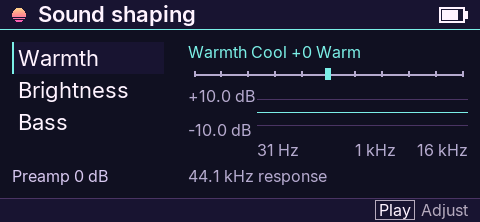
Start with the change you want to hear. Each control runs from −5 to +5; zero leaves it neutral.
Warmth / Brightness
Make the sound fuller in the low mids, or darker and brighter in the treble.
Bass / Punch
Add deep bass or emphasize its impact.
Vocals / Air / Clarity
Bring voices closer, open the top end, or reduce low-mid thickness.
Play starts an adjustment; the volume buttons change it. Play keeps it and Back cancels. Automatic headroom can lower overall loudness to leave room for boosts.
The rest of Sound shaping
Brightness, Bass, and Punch
Scroll view · select image to enlarge
Vocals, Air, and Clarity
Scroll view · select image to enlarge
Correction and saved sounds
Sound shaping → lower entries
Save to slot keeps the sound and slider positions in one of eight EQ slots. Reset shaping puts the sliders back to zero.
On top of adds your choices to a saved parametric correction, such as an imported headphone preset. The correction and active controls must fit ten filters in total. Reset keeps the correction underneath.
Parametric EQ
Settings → Sound → Parametric EQ
A parametric EQ lets you choose exactly where a sound adjustment happens and how wide it is.
Add filter / Type
Add up to ten filters. Peak changes a band; Low shelf and High shelf adjust everything below or above a chosen region.
Frequency / Gain / Q
Frequency chooses the pitch range, Gain cuts or boosts it, and Q controls the width. Higher Q is narrower. Disable a filter to compare without deleting it.
Preamp / Slots
Preamp changes the overall level; automatic protection leaves room for boosts. Save a graphic or parametric sound in any of eight slots.
Copy an AutoEQ ParametricEQ.txt or compatible Equalizer APO/Squiglink file into /EQ on the music drive. Choose it in Equalizer, review it, and save to a slot. EQ applies to music up to 96 kHz; higher rates and USB audio (DAC) bypass it.
Gain changes the available output level. Low suits easier-to-drive headphones; High adds level and first reduces the volume. Turn up again as needed.
The five DAC filters offer fast or slow treble roll-off, low latency or phase compensation, plus Non-oversampling. The default is Fast, low latency. Slow filters soften the upper edge more gently; Non-oversampling softens the highest treble at 44.1/48 kHz.
Press Play to apply either choice. The output briefly mutes while it changes. The choice applies to both headphone jacks.
ReplayGain
Settings → Sound → ReplayGain
ReplayGain uses loudness tags to reduce jumps in volume between recordings. Off leaves their levels unchanged.
Track
Balance individual songs.
Album
Keep the intended differences within an album.
Auto
Use Album for consecutive album tracks, including album shuffle, and Track for song shuffle or isolated songs.
Without gain tags, the player keeps the recording’s normal level. Prevent clipping limits boosts using peak tags.
Crossfeed and spoken-word controls
Crossfeed blends the left and right channels slightly for headphones. Speech controls shorten long pauses or even out voices in books and podcasts.
Crossfeed
Settings → Sound → Crossfeed
Off keeps the original stereo separation. Low, Medium, and High blend increasing amounts of softened, slightly delayed sound into the opposite ear.
This is the default when no headphone profile is active. Each profile can keep its own choice. Mono plays unchanged; USB audio bypasses crossfeed.
Crossfeed in a headphone profile
Settings → Sound → Headphones → choose a profile
A profile keeps Name, Trim, Balance, Volume ceiling, and Crossfeed together. Choose Use profile to make it active. Profiles created by earlier builds start with crossfeed off.
Shorten pauses longer than a quarter-second to a quarter-second, with a short fade. Shorter pauses stay as recorded.
Speech boost
Raise quiet voices and reduce loud passages, with up to 12 dB of boost. Background noise below speech is not raised.
Both apply to audiobooks and podcasts, leaving music alone. Positions, chapters, and bookmarks stay in the recording’s original time. Processing details and player checks →
Settings reference
Choose how the player looks, sounds, and connects. These views follow Settings from top to bottom, with explanations for each choice.
Use the volume buttons to move and Play to choose. Back returns to the previous screen. When a choice previews as you browse, Play saves it, and Back restores your saved choice.
Settings at a glance
Home → Settings
About
Check the firmware version and whether music uses Card + internal or Internal. Open Keys for a full-screen button test; Power leaves the test.
Shuffle
Choose Off, Songs, or Albums. Albums changes the album order while keeping each album’s songs together.
Repeat
Choose Off, One song, or All of the current play order.
Bluetooth
Pair wireless headphones and manage remembered connections.
Sleep timer
Choose 15–120 minutes, End of track, or End of chapter. The final minute fades out. A timed timer continues while paused; an end timer waits for playback to finish.
Auto off
Switch off after inactivity when playback is stopped and USB power is disconnected.
Display and time
Home → Settings → Display & text
Screen timeout
Choose how long the screen stays lit. Music keeps playing when it goes dark.
Clock format
Choose 12-hour time with AM/PM or 24-hour time. The status bar, Clock, Calendar, and date editor follow this choice.
Choose Auto or the 3.5 mm or 4.4 mm volume scale. This sets the scale; it does not switch audio between the jacks.
Equalizer
Preview presets, saved curves, or imported EQ files. Play keeps the choice; Back restores your saved sound.
Loudness and library
Home → Settings → Library
Custom EQ
Adjust ten frequency bands and save a curve in a slot.
ReplayGain
Track evens out tagged songs; Album keeps differences within an album. Auto uses Album for consecutive album tracks and Track for song shuffle or isolated songs. Off leaves the level unchanged.
Prevent clipping
Limit ReplayGain boosts that could distort the sound, using peak tags. Without peak tags, boosts stop at the original level.
Start screen
Choose which screen opens at startup.
Rescan library
Rebuild the library and read every song’s tags again. Automatic rescans after copying music reuse the tags of unchanged files. Covers fill in afterwards while the player is idle.
Hidden tracks
Shown while songs are hidden. Select an entry to show it again; a rescan may be requested.
USB mode
Choose Connect to computer, Charge & play, Run from USB power, or USB audio (DAC). Cable power mode is available while plugged in.
Appearance and listening comfort
Home → Settings → Playback
Theme
Preview one of five built-in looks. Play keeps it; Back restores your saved theme.
Choose 0.5×–3× without changing pitch. Recordings above 48 kHz play at normal speed. See the controls.
Rewind on resume
Replay a few seconds after a pause so you can catch the thread. Longer pauses rewind further, up to 20 seconds for music or 30 for books and podcasts. While paused, Now Playing shows where Play will start, including that rewind. Choose a position yourself to start there without another rewind. Turn it off to resume exactly where you paused.
Safe start volume
Choose a wired-volume cap for startup and headphone connections: 12, 18, 24, 30, 36, or Off. Bluetooth has a separate connection cap of 50. Quieter levels stay unchanged; USB audio keeps its own volume.
Transitions
Choose Fade for a fade-out and fade-in between shuffled songs. Consecutive album and CUE tracks, books, and podcasts keep normal transitions.
Transition length
Shown when Fade is on. Choose 0.5–6 seconds per fade; the default is 1.5 seconds. A fade takes no more than a third of a song.
Connections and audio effects
Home → Settings → Connections
When plugged in
Ask prompts on each computer connection. Choose an automatic answer instead: Connect to computer, Charge & play, Run from USB power, or USB audio (DAC). Hold Play in the chooser also saves an answer. See the choices.
Power on
Choose Hold or Press to leave the charge screen while connected to a cable. Starting from completely off still requires the hardware’s Power hold.
Skip silence
Shorten long audiobook and podcast pauses without changing saved positions. See speech controls.
Choose a stereo blend for headphones; active profiles use their own choice. Understand crossfeed.
Headphones
Keep four profiles with level, balance, ceiling, and crossfeed choices. See profile controls.
Personalization and power
Home → Settings → Power & battery
Eject card / Mount card
Eject releases a mounted card before removal. Mount reconnects an ejected card that is still inserted. These rows appear when the relevant action is available.
Format card
Quick-format a microSD card after two confirmations. Back up first: formatting erases its music, library, queue, bookmarks, and mixtapes. Cards through 32 GB use FAT32; larger cards use exFAT. The newly formatted card is named GnarlySD. Pause card playback, finish USB transfers, and charge above 30% or connect a charger. Keep the card inserted until it finishes.
Home screen
Move or hide Home items. Settings always remains available. Reset to default restores the original order.
Parametric EQ
Adjust individual frequencies with up to ten Peak or shelf filters. Learn the controls.
Power
Enable optional standby and choose full shutdown after 30 minutes, two hours, or eight hours. See the power guide.
Assign tap and hold shortcuts to Volume+, Volume−, Play, and Menu. Audio shortcuts also work with the screen off.
Status bar
Settings → Display & text → Status bar
Choose which small details sit beside the title and battery. Each choice is kept across restarts.
Show volume
Show a speaker and the player’s volume from 0 to 60.
Show repeat
Show the repeat indicator for All or One; Off hides it.
Queue position
Show your place in the play order, such as 3/12. Landscape shows it when the title is hidden; portrait centers it.
Battery percent
Show a number beside the battery. Low charge appears in red.
Status bar layout
Standard keeps the familiar header. Compact uses smaller icons and tighter spacing to fit more entries; its battery always includes a percentage.
Battery style
Choose Solid or five Segmented bars. Both show low-charge warnings and the USB charging bolt.
Optional details start off. When space is tight, the battery, main indicators, and screen title keep their places; extra details appear where they fit.
Settings backups
Before a new firmware version reads your saved state, Gnarlyr saves a backup named for the version you were using. It keeps the last two, including settings, EQ, headphone profiles, Bluetooth devices, queue, favorites, mixtapes, and listening history.
Open Settings → Library → Backups and choose a version to restore its saved state. The screens restart with those settings. Music and artwork are outside the backup; the library and covers rebuild from your music.
If you install an older firmware version, files it cannot understand are kept aside. They return when you move back to the newer version.
Date and time
Set the clock on the player or sync it from a Mac. Home → Clock shows the time and date; Play opens a monthly calendar.
Date & time
Settings → Display & text → Date & time
Enter your local date and time, then set the UTC offset: how far your time is ahead of or behind UTC. For example, Pacific standard time is −08:00; daylight time is −07:00.
Volume buttons
Change the selected value. Hold to change it repeatedly.
Menu
Move to the next field. Hold Menu to go to the previous one.
Play / Back
Play saves; Back cancels. A successful save sets seconds to zero.
The clock chip and saved offset restore local time after restarting. Change the offset when daylight saving time changes. If the clock says Not set, set it here or sync from a Mac.
In Calendar, the volume buttons move between months, Play returns to the current month, and Back returns to Clock. Settings → Display & text → Clock format chooses 12-hour or 24-hour time.
Display, buttons, and Home
Choose a look you can read comfortably, then assign shortcuts for the way you listen.
Themes
Settings → Display & text → Theme
Landscape view
Choose Graphite, Neon Noir, Sunset, Sea Glass, or Classic. Text size and Orientation control the layout.
Preview a theme with the volume buttons.
Play keeps it; Back restores your saved theme.
Language packs change interface text while keeping English available.
Buttons
Settings → Buttons
Landscape view
Assign tap and hold actions to Volume+, Volume−, Play, and Menu. These shortcuts control playback; lists keep their usual navigation.
Choose a button action, then select the shortcut you want.
Use Default for the standard behavior. Hold Menu can instead open Quick Settings, Up Next, Add to tape, Shuffle, or Sleep timer.
With the screen off, Play pauses or resumes, volume adjusts loudness, Play plus a volume button skips, and Menu plus a volume-button tap moves 10 seconds, without lighting the screen. Hold previews need the screen on.
Remaining button actions
Controls — lower entries
Scroll view · select image to enlarge
Home screen
Settings → Display & text → Home screen
Put the items you use most near the top and hide the rest. Settings always stays on Home.
Play opens an item’s Show/Hide and Move actions.
Choose Move, or hold Play, then use the volume buttons to reorder it.
Play places it; Back cancels the move. Reset to default restores Music, Mixtapes, Recap, Clock, USB mode, and Settings, with Audiobooks, Podcasts, and Up Next hidden.
Now Playing appears automatically at the top when a track is loaded and has no row in this editor. Audiobooks, Podcasts, and Up Next can be shown here. Set the clock and explore Calendar →
Player language
Menus can change language while song titles keep the names in your files. Here is Home in Spanish, French, German, and Russian.
Español· Spanish
Français· French
Deutsch· German
Русский· Russian
These examples use small language packs for the menus shown. Create or edit a matching pack, copy it to the player, and choose Settings → Language. English stays available.
Theme packs
A theme pack adds colors, backgrounds, and icons as a single .gtheme file. Preview it without reinstalling firmware, then return to a built-in look whenever you want.
Copy the pack. Put the .gtheme file in /.gnarlyr/themes/ on the active music drive: microSD when inserted, otherwise internal storage.
Eject and preview. Open Settings → Display & text → Theme. Installed packs follow the five built-in themes and show their name and author.
Keep or cancel. Play keeps the theme; Back restores the saved one. Selection survives restart. A missing or damaged active pack falls back to a built-in.
Choose whether the cable only charges the player, connects its drives, or carries your computer’s audio. On a computer connection, Ask highlights Connect to computer. Press Play to connect, or leave it for 15 seconds to choose Charge & play.
USB mode
Home → USB mode · or Settings → Connections → USB mode
Landscape view
Connect to computer: expose the drives for music and firmware updates. Internal storage and microSD appear separately; the player charges while connected.
Charge & play: keep listening while the battery charges, without exposing the drives.
Run from USB power: use cable power with charging off. A low or unknown battery reading enables charging first. This choice appears with a cable connected.
USB audio (DAC): send computer audio to the headphone outputs. Select Gnarlyr as the computer’s sound output.
A normal selection lasts until you unplug. Hold Play on a choice to save it for future connections. Standard internal storage is named Gnarlyr; a card formatted on the player is named GnarlySD. Custom drive names stay unchanged.
To leave storage, eject the player's drives on the computer, or hold Back for a second on the player and wait for the chooser. Returning to music in the same powered-on session keeps your playback position and current wired volume; it does not apply the startup rewind. For firmware updates, use the computer-eject procedure and leave the cable connected until installation finishes.
USB audio choice
When plugged in
Settings → Connections → When plugged in
Ask shows the choices whenever a computer connects. The other choices answer automatically: connect the drives, charge while listening, run from cable power, or start USB audio.
Run from USB power also applies on a wall charger. Other saved choices charge normally on a wall charger. The low-battery fallback protects a battery that needs charging first; this mode does not enforce an 80% charge limit.
USB audio as the saved answer
Connect to computer: see the session at a glance.
The Connected overview shows how quickly data is moving and which drive is busy. Press Menu to cycle through the details and return to the overview. A short Back press reminds you to hold it to disconnect.
Storage overview
Connect to computer
Sample USB session · select image to enlarge
Rate, graph, and totals
See MB/s, a wireframe terrain of recent activity and the read/written amounts. Fixed-width digits keep the figures in place. Separate arrows light for reads and writes, and each drive’s activity light stays steady during a transfer.
Drive gauges
Internal storage and microSD have separate read/write activity lights. Free space is measured when the computer connects and again a few seconds after the computer stops writing.
Storage detail pages
Per-drive reads and writes
Sample USB session · select image to enlarge
Link and session details
Sample USB session · select image to enlarge
The header’s speed icon identifies the link. Details show read/write totals and command counts, average command size, peak and average transfer rate, busy time, errors, and USB link speed. The 480 Mbit/s or 12 Mbit/s link label is the connection mode, not a promised file-copy speed.
Holding Back asks the player to disconnect. It waits for three quiet seconds after writes, then shows Disconnecting before returning to the chooser. If it says Still writing, let it finish. Continuing to hold for three more seconds forces a disconnect and can lose recent changes. For updates, use the computer-eject procedure.
USB audio (DAC): use the ECHO for computer audio.
Choose USB audio (DAC), then select Gnarlyr as the computer’s sound output. High-speed USB offers 16/24/32-bit PCM at 44.1, 48, 88.2, 96, 176.4, or 192 kHz. Full-speed fallback offers 16/24-bit at 44.1/48 kHz. The computer chooses the format; the developer guide covers host validation.
DAC overview
USB audio (DAC)
Sample USB session · select image to enlarge
The framed format shows what the computer negotiated. Stereo meters, player, and host volume, the output jack, and a buffer bar summarize the stream.
Tap Back for technical detail pages and again to return. Hold Back to leave DAC mode, or press Menu for sound and USB-mode choices.
DAC detail pages
Stream and buffer details
Sample USB session · select image to enlarge
Details include exact rate and bit depth, interface, and channels, buffer average/low/high, clock correction, feedback, underruns/overruns, gain, and session time. They help diagnose a stream; they do not measure sound quality.
On screen
Stereo level meters, audio format, player, and computer volume, headphone output, and active profile. Buffer, clock correction, and underrun counts give more detail about the stream.
Menu
Adjust Volume, Gain, Output, or Headphones without leaving DAC mode. You can also switch to Connect to computer or Charge & play.
Media keys
Outside the menu, Play sends play/pause to the computer. Hold Volume+ for next track or Volume− for previous; the computer’s app handles the request.
Volume buttons
Move through menu rows; Play changes a choice. On Volume, press Play, and then use the volume buttons to adjust. Back or Menu closes the menu.
DAC mode remembers its own volume, starting at 35 of 60, separately from music. Start low. Headphone-profile trim, balance, and ceiling apply; EQ and ReplayGain do not.
Bluetooth: press Play to reconnect.
If music last used Bluetooth, Play wakes the radio and tries your most recent headphones after its idle switch-off or startup. It waits up to ten seconds, then stays paused if they do not connect. Press Play to try again, or connect wired headphones.
A lost connection pauses music. When the headphones return, they reconnect without resuming until you press Play. If a connected speaker pauses its stream as it starts, the player retries that stream once.
Power and charging
Screen sleep, standby, and shutdown do different jobs. Choose what happens when you put the player down.
Power
Settings → Power & battery → Power
Screen timeout
Blanks the display while music can keep playing.
Standby when switched off
Off by default. When enabled, a short Power press or Auto off keeps the session in standby with the screen, audio output, and Bluetooth off. Power wakes it; Play resumes.
Power off after
Fully shuts down standby after 30 minutes, two hours, or eight hours. A long Power hold and the Sleep timer still request shutdown.
Settings → Power & battery → Power on is separate: it chooses Press or Hold when leaving the charge screen on a cable.
Start and stop animation
Settings → Power & battery → Power → Start and stop animation controls the wireframe opening and closing. It starts on by default. The opening runs for about 0.8 seconds; normal shutdown saves your session before the half-second closing. Charging starts, warning screens, and shutdown from some menus use a plain fade. Low-battery and forced shutdowns skip the animation.
Charging progress
The charge screen shows a large battery, percentage, and power state. After at least five minutes of consistent readings, it estimates charge gained per hour and time to full. Measuring… means it needs a steadier trend. This is an estimate from battery readings, not a measured charging current.
Shortcuts with the buttons locked
Hold Power first, then press Volume+ for next track or Volume− for previous. Release both before repeating. Hold Play + Power to lock or unlock.
With the cable plugged into a computer, Power + Volume+ is kept for recovery mode and doesn’t skip. Holding both for 3 seconds restarts the player into recovery mode with the screen black; unplug and press RST to leave it.
More guides
Find hardware specifications, installation help, and tools for building on Gnarlyr.